Microsoft Cloud App Security (MCAS) has the capability to monitor user activity, manage cloud applications, detect suspicious activity, discover shadow-IT and force security and compliance policies for Microsoft and non-Microsoft applications. In this blog post my focus is mainly on the policies to control data exfiltration from an IT-environment. It is described how to prevent downloading company data when working on unmanaged devices.
Of course, it is preferred that users work on managed, compliant devices at all times, enabling them to have full access to the company applications and Office365 functionalities. In this scenario a situation is described in which users work via non-compliant, unmanaged devices and as a result those users can only access Office 365 applications via a browser session, but downloads from OneDrive, SharePoint, Teams and downloading attachments from emails will be blocked. In this setup Cloud App Security and Conditional Access is used for configuring the policy that defines how to control browser sessions.
Pre-requisites
In order to configure MCAS make sure that the correct permissions and licenses are in place:
- Global Administrator or a Security Administrator
- Enterprise Mobility + Security E5
Connected Apps
First connect the application that requires configuration in order to get control, visibility and receive access to the investigate activities. Please follow the steps below to do so:
- Access to the Cloud App Security portal goes through: https://portal.cloudappsecurity.com
- From the settings menu open “App connectors” and via the blue plus icon, select the right application, in this case “Office 365“, see (figure 1)
- Perform the steps in the wizard to connect the app successfully
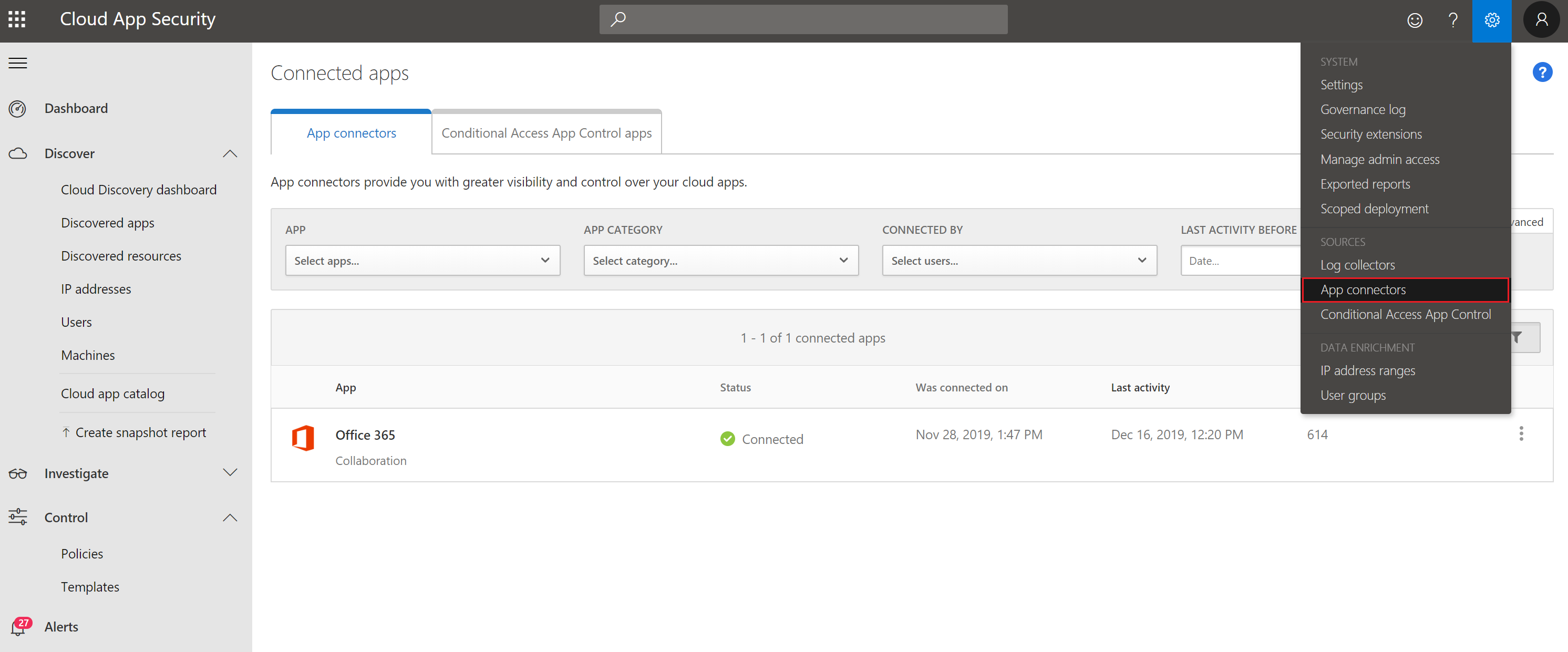
Figure 1. App connectors from the MCAS dashboard.
Create Cloud App Security policies
Second, policies need to be created to control alerts and actions, in order to configure the blocked download policy. This can be done as follows:
On the left, click Control -> Policies (figure 2)

Figure 2. Create policies.
Click on Create policy -> Session Policy (session control applies to browser-based apps, figure 3)

Figure 3. Create Session Policy.
In the Create Session Policy window select the following settings as shown in figure 4:
- Policy template: No Template
- Policy name: Block browser download unmanaged devices
- Description: (can leave blank)
- Policy severity: Low
- Category: DLP
- Session control type: Control file download (with DLP)
- Activity source: Device – Tag – does not equal – compliant – domain joined
- Actions: Block (feel free to type a customize message)
If desired, one can also send an alert via email or Flow when the policy is active. Don’t forget to save the policy.

Figure 4. Create cloud app security session policy.
Create Conditional Access policies
Third a Conditional Access policy can be determined in Intune indicating to which users the policy must be applied and under which conditions.
- Sign into the Azure portal -> https://portal.azure.com
- Go to Intune -> New Policy (figure 5).

Figure 5. Create Conditional Access Policy in Intune.
Give the policy a name for example “Block browser download unmanaged devices”. Next, assign the users and/or groups to which the policy applies, as shown in figure 6.

Figure 6. Assign users and/or groups to the policy.
Now the Cloud apps and actions can be configured. In this case the policy should be active on Office 365 Exchange Online and Office 365 SharePoint Online (figure 7).

Figure 7. Configure cloud apps or actions.
Note: When SharePoint Online is chosen in the Conditional Access policy, this not only applies to SharePoint Online and OneDrive, but also to Teams, Plans, Delve, MyAnalytics and Newsfeed.
Under Conditions select at Device Platform -> Any Device (figure 8) and under Locations -> Any location (figure 9). In the Device state under Include -> select All device state and check the following boxes under Exclude -> Device Hybrid Azure AD joined, and Device marked as compliant (figure 10 & 11).

Figure 8. Configure conditions.

Figure 9. Configure locations.

Figure 10. Configure device state (include).

Figure 11. Configure device state (exclude).
As described, a Cloud App Security policy is now configured for blocking downloads from browser sessions on unmanaged devices. Next, the Session controls will be configured, so Conditional Access is aware of the policy. To do so, check the box Use Conditional Access App Control and select Use custom policy… (figure 12).

Figure 12. Configure session policy.
Enable and save the policy!
End-user Experience
When a user opens https://portal.office.com from an unmanaged device and then opens Outlook, a notification is received by the user that Exchange Online is monitored (figure 13). When the user chooses to continue, the mailbox opens, and if the user subsequently wants to download attachments from emails in Outlook, a notification will be shown that the device is not secure as displayed in figure 14. The same will be observed when downloading documents from OneDrive (figure 15 & 16).

Figure 13. Notification that access to Microsoft Exchange Online is monitored.

Figure 14. User notification when downloading attachments in OWA.
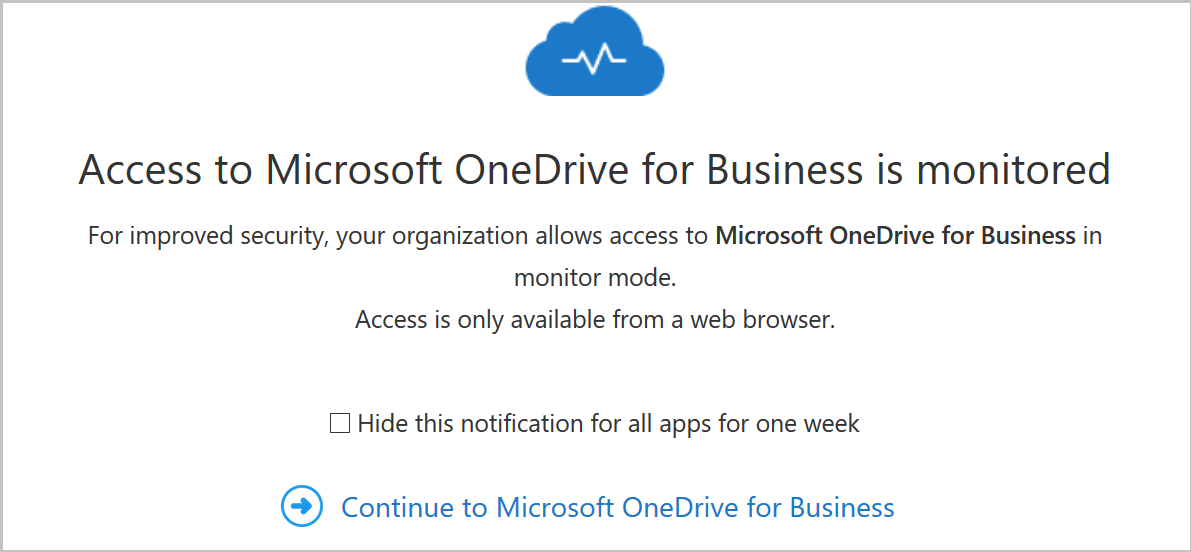
Figure 15. Notification that access to Microsoft OneDrive for Business is monitored.
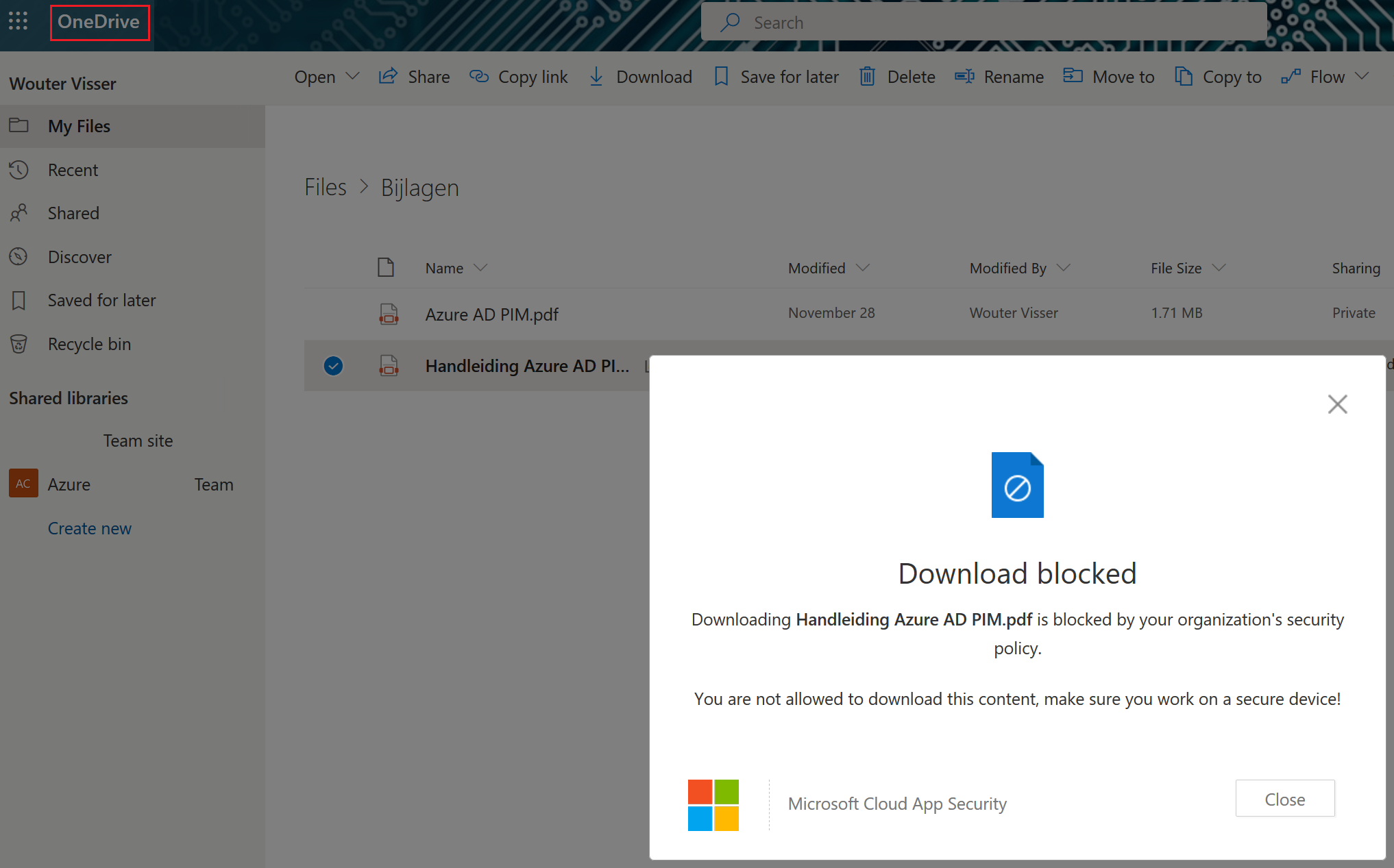
Figure 16. User notification when downloading attachments from OneDrive.
As soon as users go to SharePoint Online, OneDrive, Teams, Plans, Delve, MyAnalytics and Newsfeed via an unmanaged device, traffic is redirected and monitored via Cloud App Security. Subsequently, alerts appear in the Cloud App Security portal under the Alerts pane if an event occurs, so that an investigation can be started as displayed in figure 17.

Figure 17. Cloud App Security – Alerts.
Good luck securing company data!


 Everything Cloud